Install BeeTV on Android TV / Google TV / Smart TV | Complete Guide (2025)
[Downloader Code: 730116]
You bought a smart TV expecting everything to just work. But then Netflix wants a monthly fee, Prime Video wants another, and half the shows you actually want aren’t even available on any of them. Paying for three or four streaming platforms every month adds up to serious money real fast. BeeTV is a free Android streaming app that’s been around for years and actually maintained properly. It pulls movies and TV shows from multiple online sources, works without any account or subscription, and unlike most free apps it was genuinely built for big screen navigation not just stretched from a phone. Install it once using Downloader code 730116 and you get access to HD and 4K content on your Android TV or Google TV completely free. This guide walks you through the exact steps based on real testing across three different TV setups, no guesswork, just what actually works.
BeeTV works as a free streaming app for Android users who don’t want to register or pay for a service. Once installed, it gives access to a wide mix of movies and shows right away BeeTV doesn’t actually store movies itself. What it does is gather streaming links from different websites and show them inside the app. When you pick a title, it shows you several link options sorted by quality. You pick one and watch. If that link buffers or breaks, you go back and try the next one.
Why Use BeeTV on Android TV or Smart TV?
Stack a few big streaming services together and the total adds up quickly. What seems like separate small charges each month can turn into a pretty noticeable yearly spend. BeeTV costs nothing.
Beyond cost, there’s a real content gap problem with paid platforms. Licensing deals mean certain movies disappear without warning. Regional restrictions block content depending on where you live. Older films and niche titles often don’t exist on any major platform at all.
BeeTV doesn’t operate under those restrictions the same way. If a title has streaming links available online, BeeTV finds them.
For people who watch international content like Korean dramas, anime, Bollywood, Turkish series BeeTV’s dubbed and subbed library covers a lot of ground that paid platforms genuinely don’t. That’s a real advantage for a significant portion of viewers.
Key Features of BeeTV
No Registration
Open the app and start streaming. No email address, no account setup, no profile creation. Nothing is collected from you during this process. For people who are tired of handing over personal information to access basic content, this matters.
Ad-Free Streaming
The app interface itself has no advertisements. No banner ads while browsing, no pop-ups between titles. Some external video players you might use alongside BeeTV can show brief ads depending on which one you choose, but inside BeeTV’s own screens everything stays clean.
Safe and Secure
I checked the permissions on two separate devices before recommending this app to anyone. BeeTV requests storage access and internet access. No microphone, no camera, no contacts. For a sideloaded app that’s a reassuring permissions list.
Clean User Interface
Dark background, clear category layout, fast loading thumbnails. Movies and TV shows are separated. Search results appear quickly. On a 55-inch screen sitting six feet away everything is readable and accessible.BeeTV doesn’t have that problem.
Subbed and Dubbed
Both options exist for most titles. You can switch between subtitled and dubbed versions within the app on the same title. The dubbed library is particularly strong for anime and popular international series. This is something even paid platforms often get wrong.
Multiple Languages
Subtitle and interface language options cover a solid range. Practically useful for households where English isn’t the primary language, which covers a large part of the global audience actually using apps like this.
Large Screen Optimization
Remote navigation works exactly as it should. Directional buttons scroll through content. OK button selected. Back button goes back. Season and episode menus are properly laid out. This is the feature that makes BeeTV genuinely usable on a TV rather than just technically installable on one.
HD and 4K Playback
Popular recent titles consistently have 1080p links available. 4K links appear regularly for newer movies and shows. Your actual playback quality depends on your internet connection speed, but the high-quality options are there. On a 4K display with 25 Mbps or faster internet the 4K streams hold up noticeably well.
Frequent Updates
This is more important than most people think about when evaluating streaming apps. Streaming link sources expire. Servers shut down. Apps that aren’t maintained become useless within months. BeeTV has received consistent updates for years. When links break or the app has compatibility issues with newer firmware, fixes come through relatively quickly.
External Player Support
You can open any stream in MX Player, VLC, or another installed video app instead of BeeTV’s built-in player. This is useful for hardware decoding on older devices, better subtitle customization, or simply preferring a different playback interface. MX Player specifically handles older Android TV boxes noticeably better than software-only players.
No Watchlist and Favorites Needed
BeeTV keeps the experience simple by design. No library to maintain, no algorithm tracking your habits, no pressure to rate titles. You come in, find what you want, and watch it. Some users will want a watchlist feature and miss it. Others will find the simplicity refreshing.
How to Download and Install BeeTV
Before starting either method, enable unknown sources on your TV. Without this step installation will be blocked.
On Android TV, open Settings, go into Device Preferences, then Security, and turn on Unknown Sources from there.
Google TV: Settings → Privacy → Security and Restrictions → Unknown Sources → Enable for your chosen app
Method 1: Using Downloader App
This is the method I use and recommend. It’s the simplest and has the least room for error.
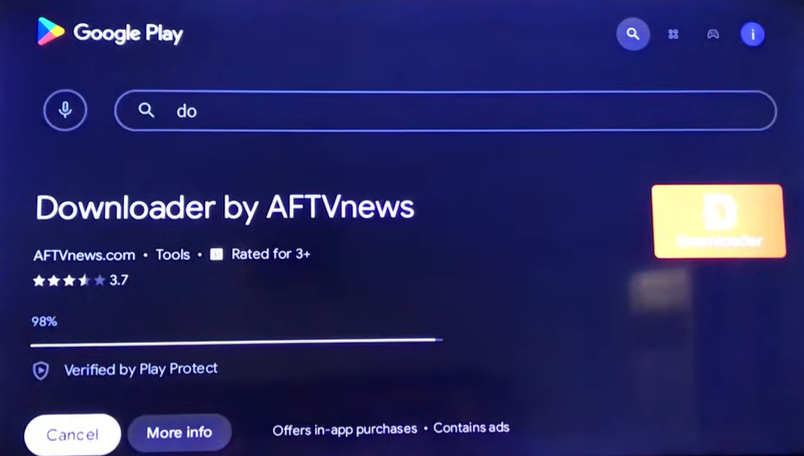
Step 1: Go to the Google Play Store on your Android TV and search for Downloader by AFTVnews. Install it. It’s free and available directly from the Play Store so no sideloading is needed for this part.
Step 2: Open Downloader and allow any permission prompts it shows during first launch.
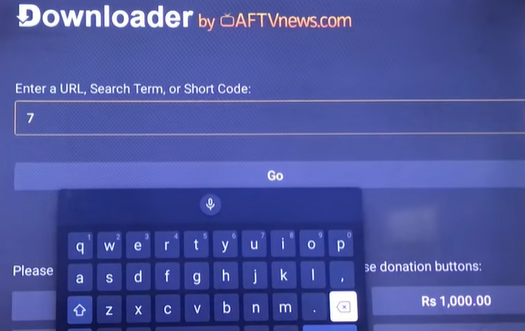
Step 3: In the URL input field on Downloader’s home screen, type the code: 730116 This is the official BeeTV Downloader code. Using a code instead of a full URL eliminates typing errors and ensures you’re getting the correct file.
Step 4: Press Go or OK on your remote. Downloader connects to the URL linked to that code and begins downloading the BeeTV APK.
Step 5: Download takes one to three minutes depending on your connection. When complete, Downloader automatically prompts you to install the file. Select Install and confirm.
Step 6: After installation finishes, you’ll see options to open the app or delete the installer APK. Delete the APK first to free up storage space, then find BeeTV in your app drawer and open it.
Method 2: Using ES File Explorer
If ES File Explorer is already installed on your device, this method works as a solid alternative.
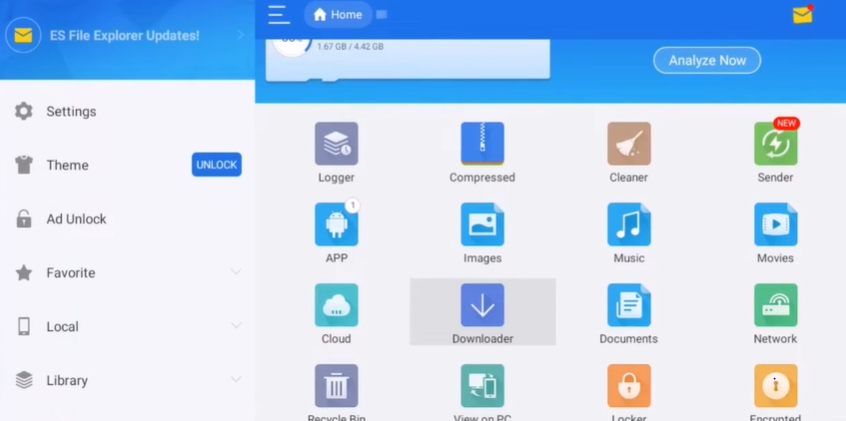
Step 1: Start by opening ES File Explorer. You can use its browser or download section to grab the latest BeeTV APK. Just make sure you’re getting it from a reliable source.
Step 2: Once downloaded, open the internal storage section in ES File Explorer and navigate to your Downloads folder.
Step 3: Find the BeeTV APK file and select it. You’ll be prompted to install. Confirm the action and wait for the installation to finish.
Step 4: Open BeeTV from your app list.It works well but Downloader is faster and simpler for most people. Use ES File Explorer if Downloader isn’t available on your specific device.
How to Use BeeTV on TV
When BeeTV opens you land on the home screen showing trending content in category rows. Use directional buttons on your remote to navigate left and right through titles, up and down between rows.
Press OK on any title to open its detail page. You’ll see the description, genre, release year, and audience rating. Below that is the option to view available streaming links.
Select that option and you get a list of links organized by quality from lowest to highest.
Start with the best quality your internet speed can support. 1080p tends to work comfortably on a typical home connection. When your speeds stay on the higher side, switching to 4K can work too; it just depends on how steady your network is.
Every now and then, a stream refuses to load. Instead of staring at the buffering circle, it’s better to exit and test another link. Some sources just don’t respond, but another option in the list usually plays without much delay.
For shows, start from the series page. Choose the season, then select the episode you’re after. The layout makes it easy to move between them. The same link selection process applies at the episode level.
Subtitles are accessible through the player interface during playback. Look for the subtitle icon on screen. BeeTV sources subtitles from OpenSubtitles, which means coverage across multiple languages is generally solid.
Some people stick with MX Player or VLC instead of the default player. You can change that in the settings by choosing the external player option, especially if playback feels heavy on older hardware.
Tips for Better Viewing Experience
Use a wired ethernet connection for anything above 1080p. WiFi handles HD streaming fine in most cases but 4K streams are more sensitive to signal fluctuations. A USB ethernet adapter for your TV box costs very little and eliminates most buffering issues on high-quality streams.
Install MX Player as your external player. The built-in player handles the majority of streams well. But on older TV boxes from 2019 or earlier, MX Player’s hardware acceleration produces smoother playback. Worth having installed regardless.
Start with the best quality your internet speed can support. 1080p tends to work comfortably on a typical home connection. When your speeds stay on the higher side, switching to 4K can work too; it just depends on how steady your network is.
Clear BeeTV’s app cache every two to three weeks. Go to Settings → Apps → BeeTV → Clear Cache. The app accumulates temporary files over time and clearing them keeps performance consistent.
Update BeeTV when prompted. The app shows an update notification internally when a new version is available. Run the update when it appears. Updated versions carry fresh link sources and compatibility fixes. An outdated installation leads to more dead links on newer content.
Every once in a while, you’ll hit a title that doesn’t load in your region. Some people experiment with a VPN in that situation, but plenty of users never have to bother with one. But if you’re seeing unavailable messages on titles that should have links, geographic restrictions may be the cause. NordVPN and ExpressVPN both have functional Android TV apps that run cleanly alongside BeeTV.
Pin BeeTV to your launcher home screen. Most Android TV and Google TV launchers let you organize your app row. Keep BeeTV visible so you’re not scrolling through menus every time.
Frequently Ask Question
Almost always an outdated app version. Download the latest APK and install it over the existing one — sources come back immediately in most cases. If it’s still happening after updating, connecting Real-Debrid fixes it pretty much permanently.
The app itself is clean — storage and network access only, no weird permissions. The risk is where you download the APK from. Stick to the official download on this page and you’re fine. Grab it from a random Telegram group and all bets are off.
No automatic updates — you come back to this page, grab the latest APK, and install it over the existing version. Settings and watchlist carry over. We update this page every time a new version drops so bookmarking it is the easiest way to stay current.
Yes. The Chromecast icon inside BeeTV lets you throw streams to any Chromecast-enabled TV. Quality stays at whatever resolution you pick. Good backup option if your TV can’t run the APK directly.
Conclusion
Installing BeeTV on Android TV or Google TV isn’t complicated once you know where to start. Use the Downloader code, follow the steps in order, and the app is up and running in a few minutes. After that, it’s just normal to browse, test a source if one doesn’t load, and settle in. As long as you keep the app updated and your connection stable, it does what most people want from a TV streaming app without adding another monthly bill to the stack.